In this blog post, I want to summarize the new releases from the Google tools that we use daily in datadice. Therefore, I want to give an overview of the new features of BigQuery, Dataform, Data Studio, Google Analytics, and Google Tag Manager. Furthermore, I will focus on the releases that I consider to be the most important ones, and I will also name some other changes that were made.
If you want to take a closer look, here you can find the Release Notes from BigQuery, Dataform, Data Studio, Google Analytics & Google Tag Manager.
BigQuery
Query template
BigQuery query templates allow data clean room owners and publishers to share predefined SQL queries with clean room subscribers, enabling collaboration without exposing the underlying source tables, views, or raw data.
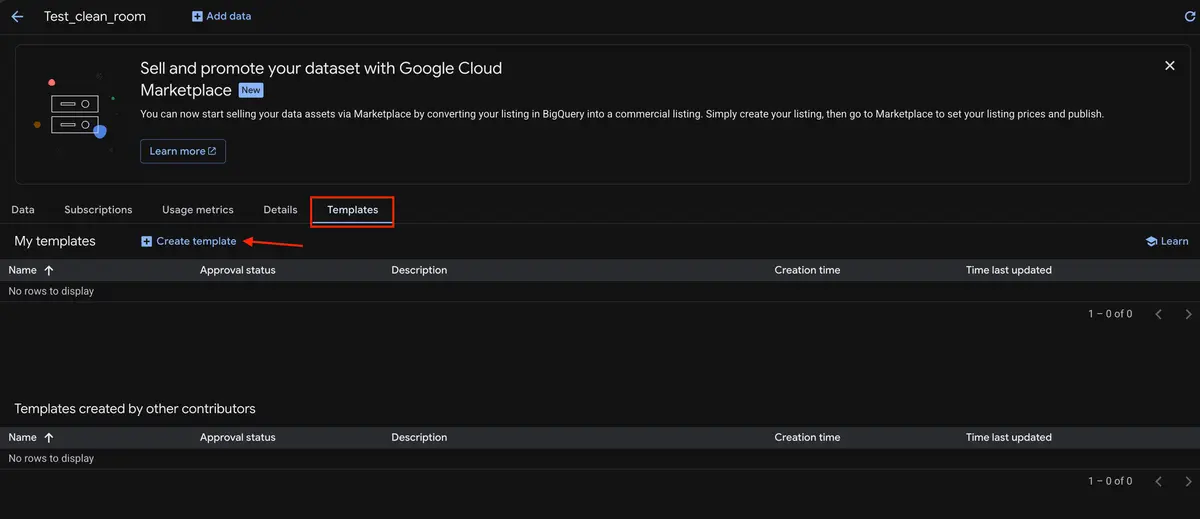
To create and publish a query template in a BigQuery data clean room, follow these steps:
- Open BigQuery in the Google Cloud Console and navigate to Analytics Hub
- Select the clean room where you want to share the query.
- Click Create template → Define queries.
- Define the SQL query logic and configure any restricted parameters or dynamic user inputs.
- Save and publish the template to make it available to authorized subscribers.
More information can be found here.
Table parameters in table-valued functions with ANY TABLE
This feature was previously available, then disabled by Google due to issues, and now it is back!
Table parameters in table-valued functions (TVFs) allow users to define parameters using the ANY TABLE type, enabling the creation of generic, reusable functions that can accept input tables of any schema or structure.
Because of the ANY TABLE type, the function is reusable, and you can use it with any table in any dataset. But the table must contain the columns with the right data type you are using in the function.
To create and execute a table-valued function with table parameters, follow these steps:
- Open the SQL query editor in BigQuery.
- Define a new function using the CREATE TABLE FUNCTION statement and set an input parameter type to ANY TABLE.
- Write the SQL query within the function body referencing the generic table parameter.
- Run the query to save the TVF in your dataset.
Example Query:
CREATE OR REPLACE TABLE FUNCTION my_dataset.my_first_tvf(input_table ANY TABLE)
AS
SELECT *
FROM input_table
WHERE record_date <= CURRENT_DATE()
This TVF returns the input table as-is, but requires a record_date column (type DATE) and only includes rows where record_date is today or earlier.
More information can be found here.
Monitor the data agents
BigQuery now supports tracking the performance, adoption, latency, and operational costs of your data agents and their ongoing conversations. This integration provides visibility into token consumption, agent execution metrics, and user interactions to help manage AI performance and expenses.
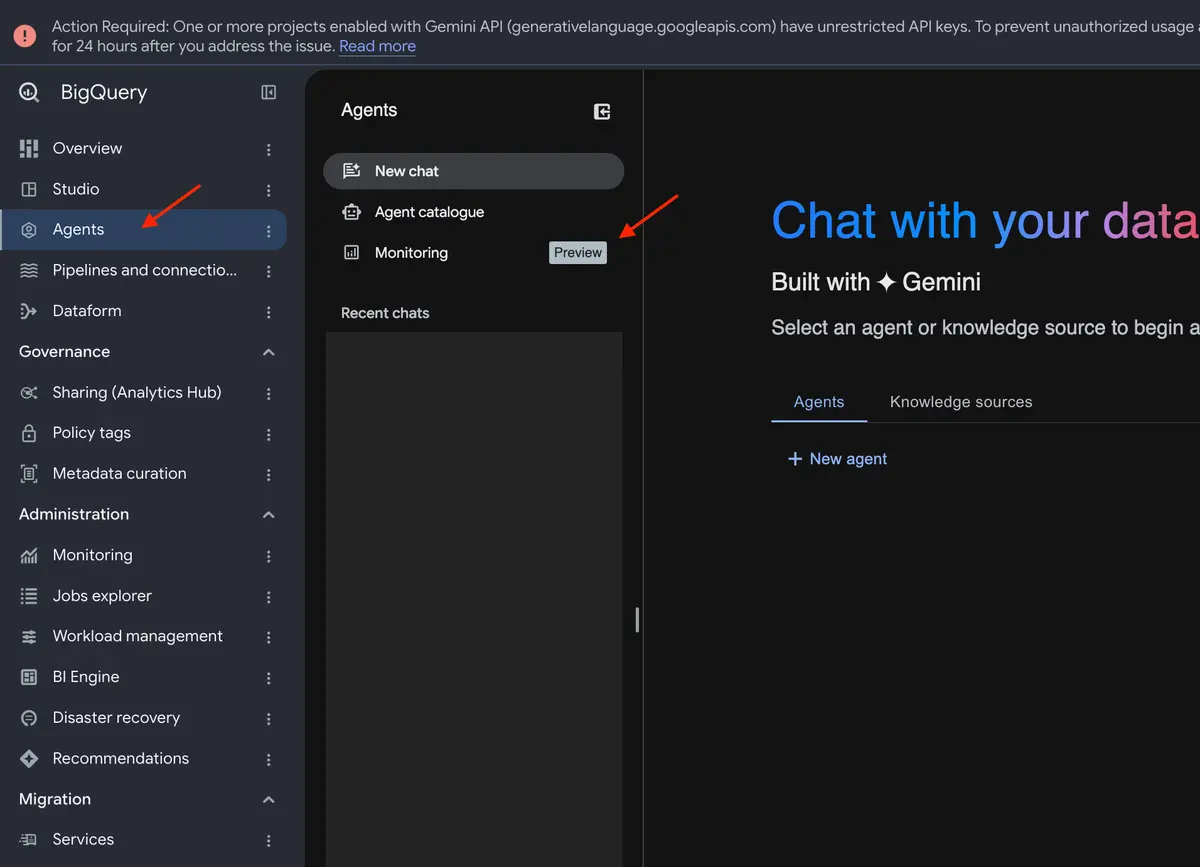
To monitor your data agents and conversation telemetry, follow these steps:
- Open BigQuery in the Google Cloud Console.
- Select the Agent Catalog tab to locate your published or drafted data agent.
- Select Monitoring.
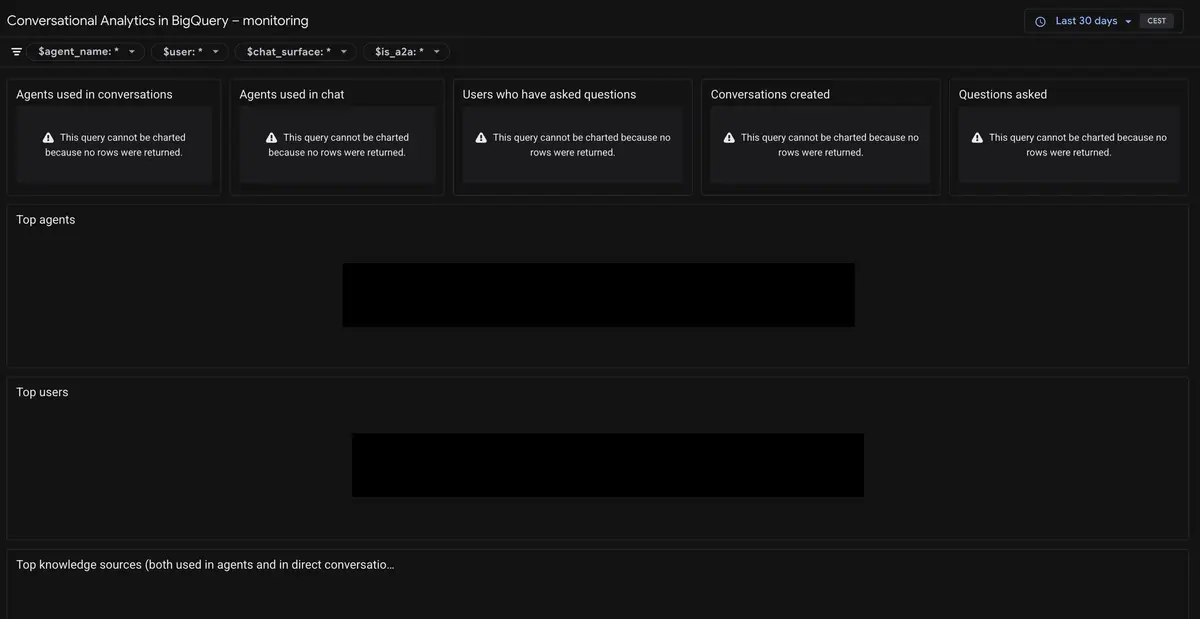
After activation and without any data agents active in the project, the monitoring looks like:
More information can be found here.
TabFM support
BigQuery now supports TabFM, Google's pre-trained foundation model designed specifically for tabular data. TabFM enables zero-shot regression and classification using in-context learning, delivering high-accuracy predictions on structured data. You can run predictions directly in SQL using the AI.PREDICT function and assess model performance using the AI.EVALUATE function.
To perform zero-shot predictions with TabFM in BigQuery, follow these steps:
- Open the SQL query editor in BigQuery Studio.
- Select or prepare your input dataset containing the structured tabular data.
- Use the AI.PREDICT function in your SQL query and pass your data.
- Execute the AI.EVALUATE function on your prediction results to review accuracy and performance metrics.
Prediction:
WITH prepared_data AS (
  SELECT *, RAND() <= 0.8 AS training
  FROM `dataset_name.table_name`
  WHERE name LIKE 'A%' OR name LIKE 'B%'
)
SELECT *
FROM AI.PREDICT(
  (SELECT * EXCEPT(training) FROM prepared_data WHERE training),
  (SELECT * EXCEPT(training) FROM prepared_data WHERE NOT training),
  label_col => 'name');
Evaluation:
WITH prepared_data AS (
  SELECT *, RAND() <= 0.8 AS training
  FROM `dataset_name.table_name`
  WHERE name LIKE 'A%' OR name LIKE 'B%'
)

SELECT *
FROM
 AI.EVALUATE(
  (SELECT * EXCEPT(training) FROM prepared_data WHERE training),
  (SELECT * EXCEPT(training) FROM prepared_data WHERE NOT training),
  label_col => 'name');
More information can be found here for the prediction and here for the evaluation.
Identity column
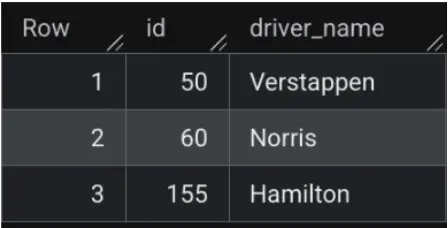
BigQuery now supports identity columns, commonly referred to as auto-incrementing columns, for tables. This feature allows users to create and maintain primary keys automatically. When a new row is inserted into a table configured with an identity column, BigQuery automatically generates a unique integer value for that field.
To create a table with an identity column, you can do the following:
CREATE TABLE dwh_formula1.id_table_test (
  id INT64 GENERATED BY DEFAULT AS IDENTITY(START WITH 50 INCREMENT BY 10),
  driver_name STRING
);
For the setup of the id column, you have two options:
- GENERATED ALWAYS AS IDENTITY: The ID is always generated by BigQuery
- GENERATED BY DEFAULT AS IDENTITY: You can add your own ID with every new entry. It does not even need to be unique.
After adding values:
INSERT dwh_formula1.id_table_test (id, data)
VALUES
(155, 'Hamilton'),
(DEFAULT, 'Norris'),
(NULL, 'Verstappen');
The result is the following:
Dataform
Automated metadata for Knowledge Catalog
Dataform workflows and BigQuery pipelines now support automated metadata enrichment for BigQuery tables and views. This feature allows users to define semantic metadata directly inside SQLX configuration blocks, which then automatically synchronizes with the Dataplex Knowledge Catalog for centralized documentation.
To configure metadata enrichment in your Dataform project, follow these steps:
- Open your Dataform repository and select the .sqlx file for the table or view you want to document.
- Locate the config block at the top of the .sqlx file.
- Add the metadata key to the config.
- Inside the metadata key, you can add keys, for example, overview and extraProperties.
- Save your changes and execute the Dataform workflow or compilation pipeline.
- Inspect the generated BigQuery asset in the Google Cloud Console or Dataplex Knowledge Catalog to confirm the metadata has synchronized.
config
{
    type:"table",
     metadata: {
        overview: "This table provides contains all order items from the shop.",
        extraProperties: {
            generic: {
                system: "BigQuery",
                type: "table"
            }
        }
    }
}
More information can be found here.
Dataform remote MCP server
Dataform now supports a remote Model Context Protocol (MCP) server, allowing you to manage and execute data transformation workflows directly through AI agents. This integration enables AI assistants to change workspace configurations, compile projects, and trigger workflow invocations.
You probably already know how to use such an MCP Server. Otherwise, you can find a guide here.
Data Studio
Small changes
There are a lot of new features available, but they just need a short explanation:
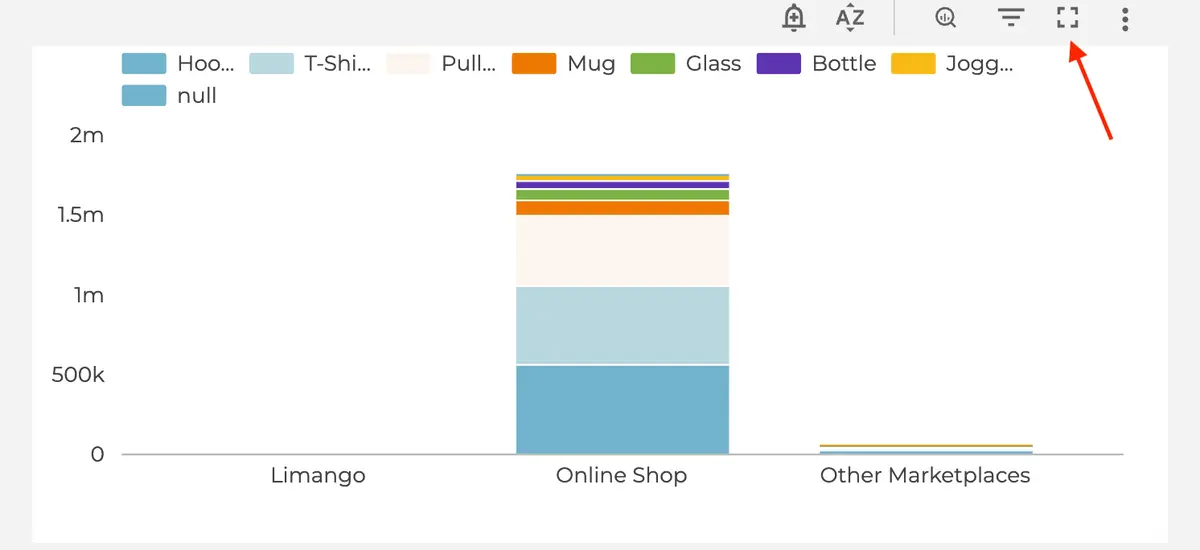
Fullscreen charts
In view mode, you can show a chart in Fullscreen now by clicking on the corresponding button in the chart header
Rotate components
Finally! You can rotate elements in Data Studio! I think there is not much explanation needed…
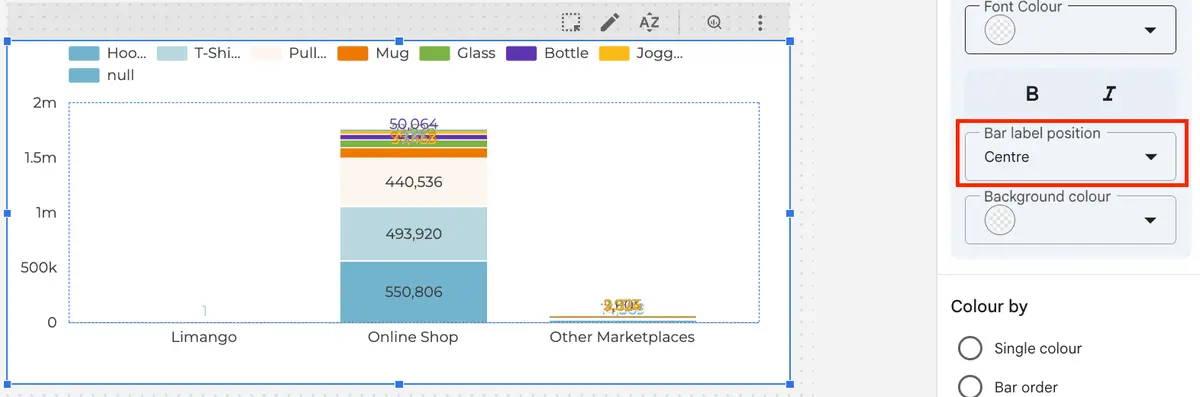
Center labels on stacked bar charts
In the stacked bar charts, you can position the label in the centre of the bar now, if the label has sufficient space
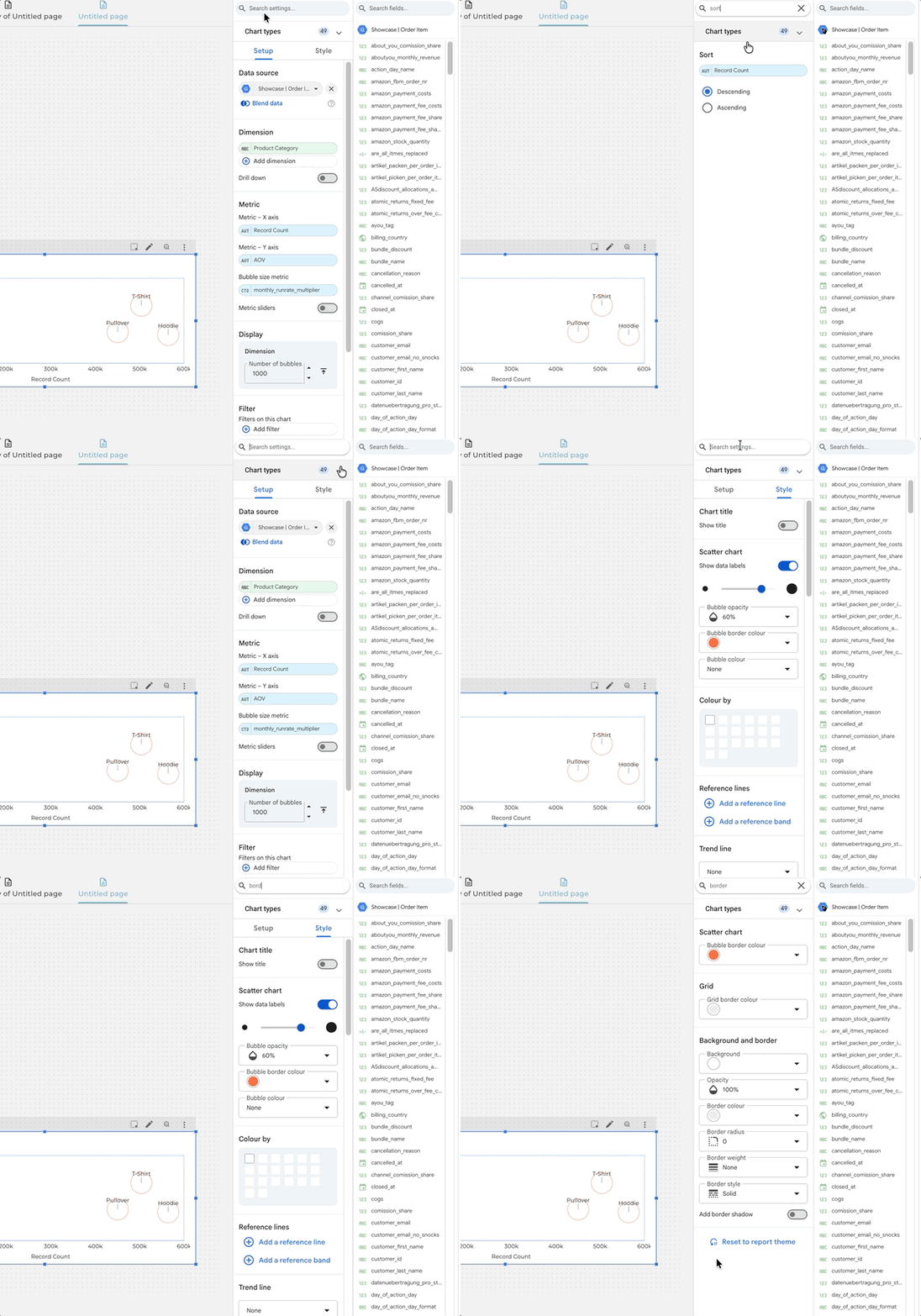
Search for settings
After selecting a chart, you have a text box above the Setup and Style tab to search for the different settings.
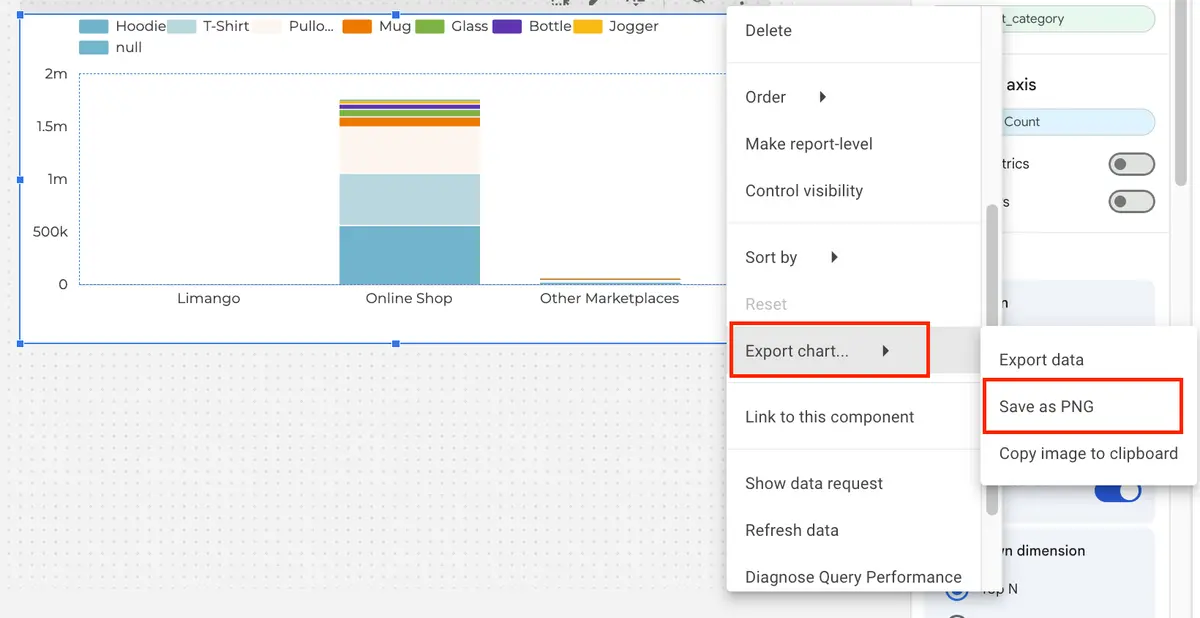
Copy chart as image
The current state of a chart can be downloaded as a PNG.
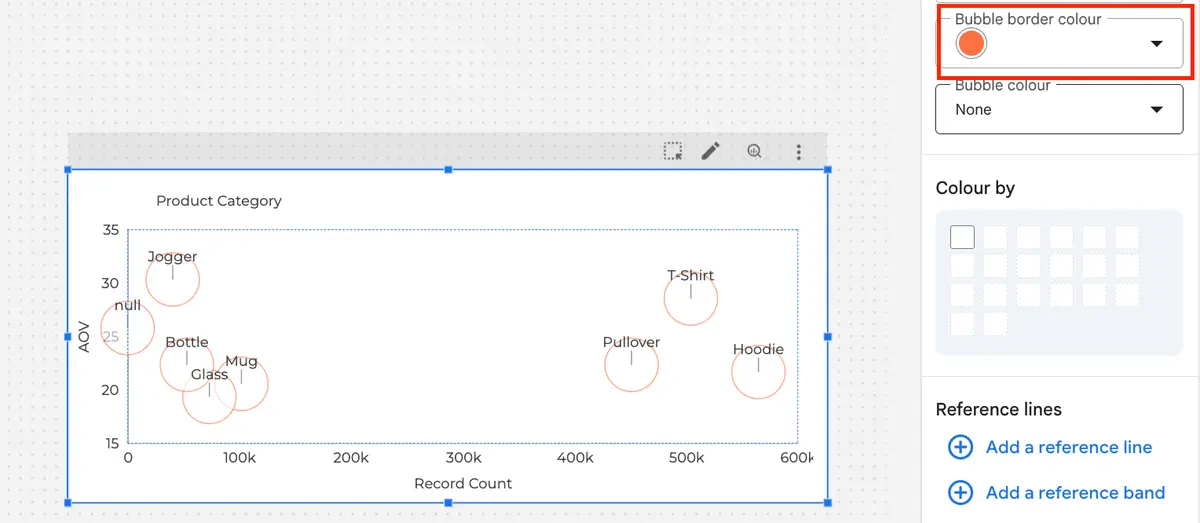
Bubble border color in charts
A new setting to change the border colour of the single bubbles is available.
Google Analytics
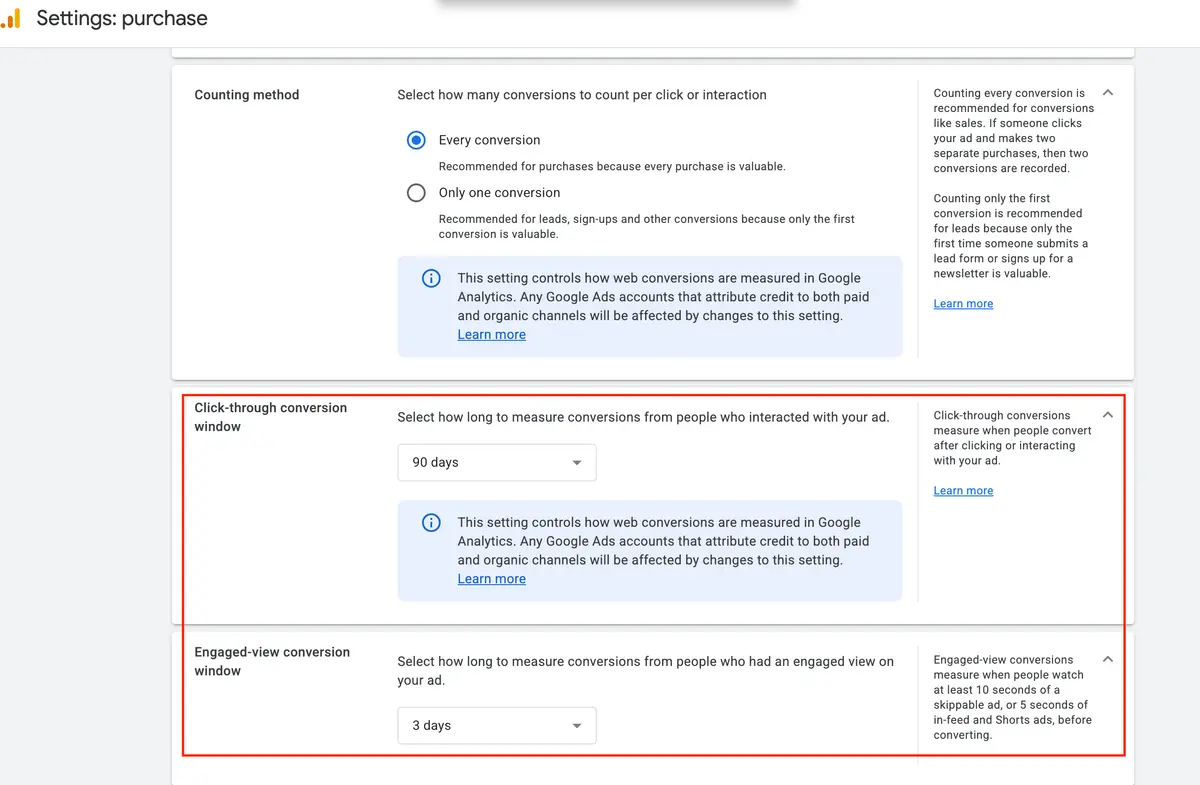
Custom conversion lookback windows
Google Analytics now supports custom integer lookback windows for click-through conversions (CTC) and engaged-view conversions (EVC).
The new configuration options include:
- Engaged-view conversion windows: Adjustable from 1 to 30 days (previously fixed at 3 days)
- Click-through conversion windows: Adjustable from 1 to 90 days (previously restricted to certain preset values)
To configure custom lookback windows in your Google Analytics property, follow these steps:
- Navigate to the Advertising section in Google Analytics.
- Select Conversion management from the menu.
- Click the more options icon (three dots) on the conversion action you want to change and select Settings.
- Set your desired integer values for the EVC and CTC lookback windows.
Campaign data validation
Google Analytics has launched a new validation report designed to evaluate and enhance the quality of campaign data imports. This feature assists in pinpointing campaigns that lack essential performance metrics, such as cost, clicks, and impressions. It also allows users to review previously imported campaign data to ensure accuracy across reporting.
To review and validate your campaign data imports, follow these steps:
- Navigate to the Admin section of your Google Analytics property.
- Under the Data collection and modification menu, click on Data import.
- Select an existing campaign data import configuration or create a new one.
- Open the validation report for the selected data import to inspect errors and missing metrics.
- Review the flagged campaigns lacking cost, click, or impression data and adjust your data import files accordingly.
Note: This feature doesn't seem to be available across my properties yet and is likely being rolled out by Google in phases.
More information can be found here.
Google Tag Manager
No further release for Google Tag Manager.
Further Links
This post is part of the Google Data Analytics series from datadice and explains to you every month the newest features in BigQuery, Data Studio, Google Analytics, and Google Tag Manager.
Check out our LinkedIn account to get insights into our daily working life and get important updates about BigQuery, Data Studio, and marketing analytics.
We also started with our own YouTube channel. We talk about important DWH, BigQuery, Data Studio, and many more topics. Check out the channel here.
If you want to learn more about how to use Google Data Studio and take it to the next level in combination with BigQuery, check our Udemy course here.
If you are looking for help to set up a modern and cost-efficient data warehouse or analytical dashboards, send us an email to hello@datadice.io, and we will schedule a call.