In this blog post, I want to summarize the new releases from the Google tools that we use daily in datadice. Therefore, I want to give an overview of the new features of BigQuery, Dataform, Data Studio, Google Analytics, and Google Tag Manager. Furthermore, I will focus on the releases that I consider to be the most important ones, and I will also name some other changes that were made.
If you want to take a closer look, here you can find the Release Notes from BigQuery, Dataform, Data Studio, Google Analytics & Google Tag Manager.
BigQuery
New Times FM 3.0 Model
BigQuery now features TimesFM 3.0, a built-in time series forecasting model based on Google Research's open-source architecture. This release upgrades forecasting capabilities by introducing multivariate forecasting.
The TimesFM 3.0 model is fully integrated with BigQuery's conversational analytics and supports the following core functions:
- AI.FORECAST: Executes univariate or multivariate time series forecasting.
- AI.EVALUATE: Evaluates the performance of univariate time series models.
- AI.DETECT_ANOMALIES: Identifies anomalies within univariate time series data.
SELECT *
FROM AI.FORECAST(
  TABLE `dataset_name.table_name`,
  data_col => 'col_1',
  timestamp_col => 'col_2',
  model => 'TimesFM 3.0',
  horizon => 30);
If you do not set a model in the function, the standard model is still TimesFM 2.5.
New AI functions
BigQuery now includes the AI.CHUNK_DOCUMENT table-valued function, which splits unstructured documents into semantically coherent text chunks optimized for vector embeddings and Retrieval-Augmented Generation (RAG) workflows. The function leverages the Document AI layout parser to respect document structure—keeping headings, sections, paragraphs, lists, and tables intact.
Key features and supported configurations include:
- Flexible input sources: Accepts a Cloud Storage URI string (with optional wildcards), an object table, a subquery containing an ObjectRef column named ref, or AI.PARSE_DOCUMENT output formatted with the raw-docai schema.
- Configurable token limits: Supports a chunk_size argument to set the maximum target chunk size between 1 and 2,000 tokens (Default: 1,000 tokens). Structured tabular output: Returns one row per chunk with chunk_id, start_page, end_page, content, and status columns.
- Managed layout parsing: Automatically provisions and reuses a project-level Document AI layout parser processor (bq-created-layout-parser) on first execution without requiring custom model setup.
SELECT
  chunk_id,
  start_page,
  end_page,
  content
FROM
  AI.CHUNK_DOCUMENT(
    'gs://your-bucket/documents/*.pdf',
    chunk_size => 1000
  );
To implement and use AI.CHUNK_DOCUMENT in BigQuery the right way, you can take a look here.
And there is another new AI function. The AI.TRANSLATE scalar function to translate text strings between languages directly within SQL workflows. The function supports both standard Neural Machine Translation (NMT) workloads and Translation LLM (TLLM) capabilities.
Key features and configuration options include:
- Dual translation engines: Defaults to the standard nmt model for fast translation, with an option to specify model => 'translation-llm' for higher-quality LLM-backed results.
- Automatic language detection: Requires only the input content string and a target_language code, automatically detecting the source language when source_language is omitted.
- Flexible output formats: Returns a translated STRING by default (NULL on error), or a STRUCT with result, status, and full API details in JSON format when return_details => TRUE is set.
SELECT
  review_id,
  AI.TRANSLATE(
    review_text,
    'en',
    model => 'translation-llm',
    return_details => TRUE
  ) AS translation_output
FROM
  `your_project.your_dataset.customer_reviews`
More information can be found here.
Data Engineering Agent and Conversational Analytics
There are a few new updates for the AI Agents in BigQuery:
- The Data Engineering Agent supports the gemini-3.7-flash model now
- You can publish a conversation from the Conversational Analytics agent in Gemini Enterprise
- You can use the data from multiple projects in Conversational Analytics
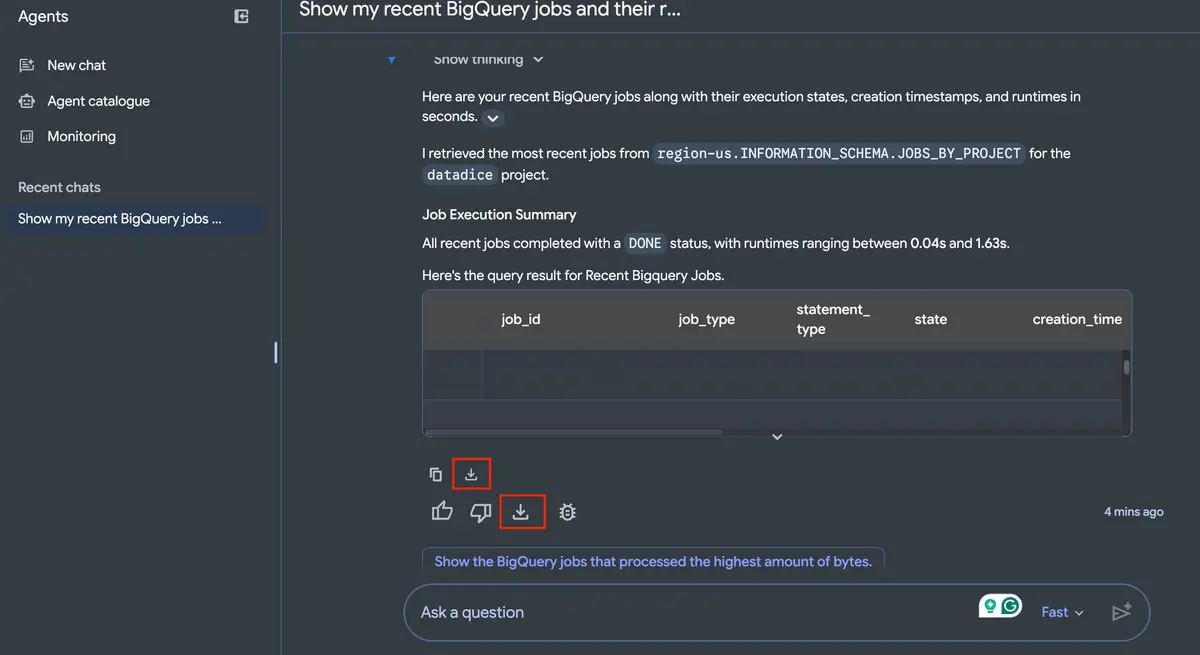
- You can export the answer from the Conversational Analytics Agent. The export can be done via PDF and includes text, visualizations, citations and tables (CSV export available as well)
Small changes
And there are two other changes I want to mention:
- Cross-region table copying: BigQuery now supports copying individual tables directly across different Google Cloud regions via the Google Cloud console, the bq cp command-line tool, or the BigQuery API, eliminating the need to manually export tables to Cloud Storage and re-import them into the destination location.
- Reusable column aliases in GoogleSQL: You can now define a column alias for an expression in the SELECT clause of a query and immediately reference that alias later within the same SELECT list or in the WHERE clause of the same query block.
Dataform
Connect with Secure Source Manager repositories
Dataform now supports connecting repositories to Google Cloud Secure Source Manager via Developer Connect. This integration enables centralized repository visibility in Developer Connect and allows Dataform to perform secure Git operations through the Developer Connect proxy.
Before configuring the integration, note the following architectural requirements and limitations:
- Regional alignment: The Developer Connect connection and the Secure Source Manager instance must reside in the same Google Cloud region.
- Read-only proxy scope: When using the Developer Connect proxy with Secure Source Manager, only Git read operations (such as clone) are supported; Git push operations and HTTP proxy functionality are not supported.
- Required proxy setting: The Developer Connect proxy must remain enabled on the connection for Dataform to access Secure Source Manager repositories.
You can set up the connection in two ways:
- Open Developer Connect in the Google Cloud console, click Create connection, and select Secure Source Manager as the source provider.
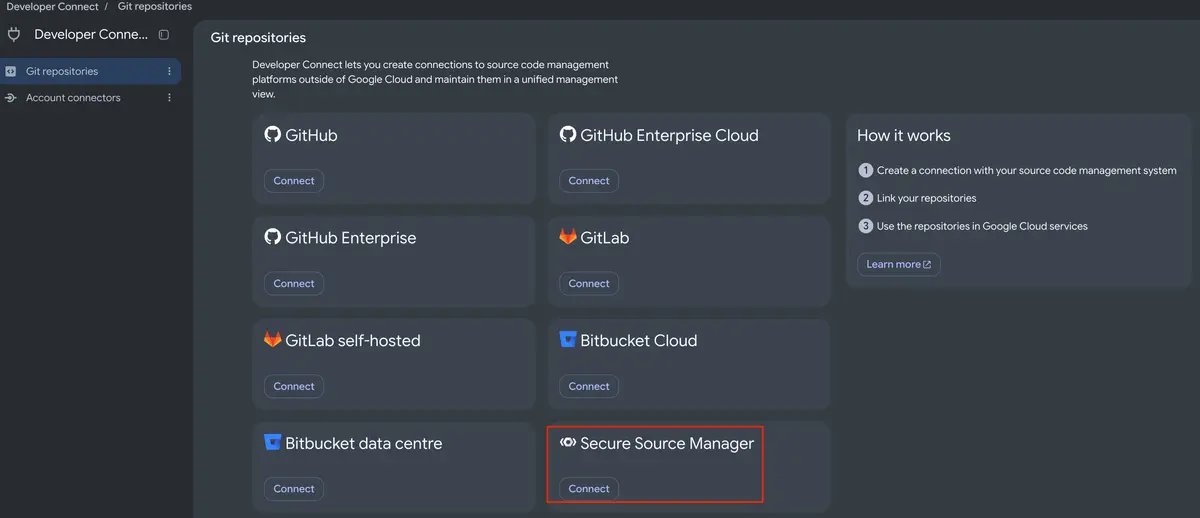
- Directly in the new Dataform repository
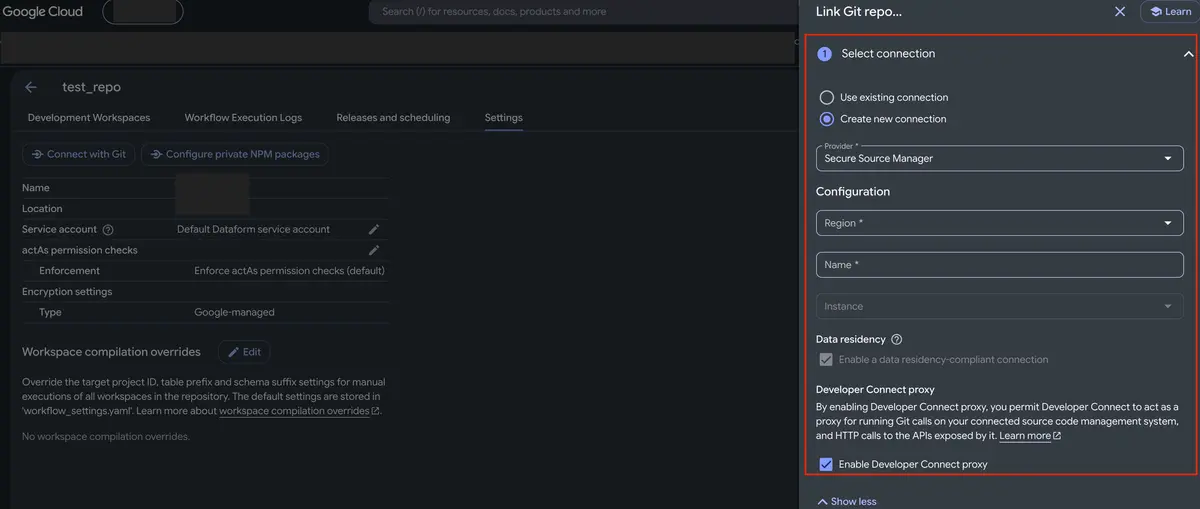
And then you need to do the following:
- Choose the same Region as your Secure Source Manager instance, enter a connection name, select your instance, and keep Enable Developer Connect proxy checked under Show more.
- Select the Secure Source Manager repositories you want to link and click Link.
- If not done directly in Dataform: Open your repository in Dataform, navigate to Settings > Connect with Git, choose Developer Connect as the protocol, and select your linked repository and default branch to complete the setup.
How to establish the connection can be found here.
Data Studio
Connect to a BigQuery Graph
Looker Studio now supports connecting directly to BigQuery Graph. Graph measures are automatically imported as metrics, and the rest as dimensions
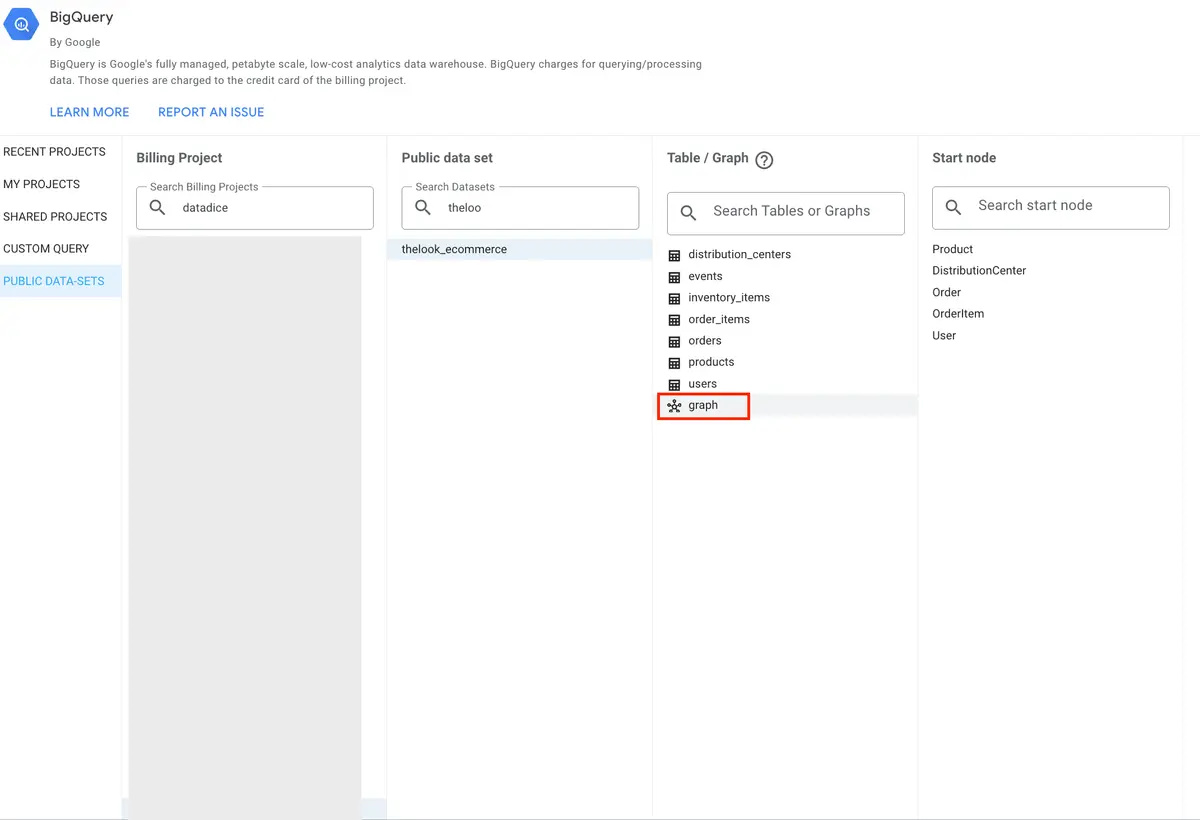
You see the Graphs next to the tables and can add them the same way as tables. Even the connect via Custom Queries is possible.
And then you can use the data as usual in charts and tables.
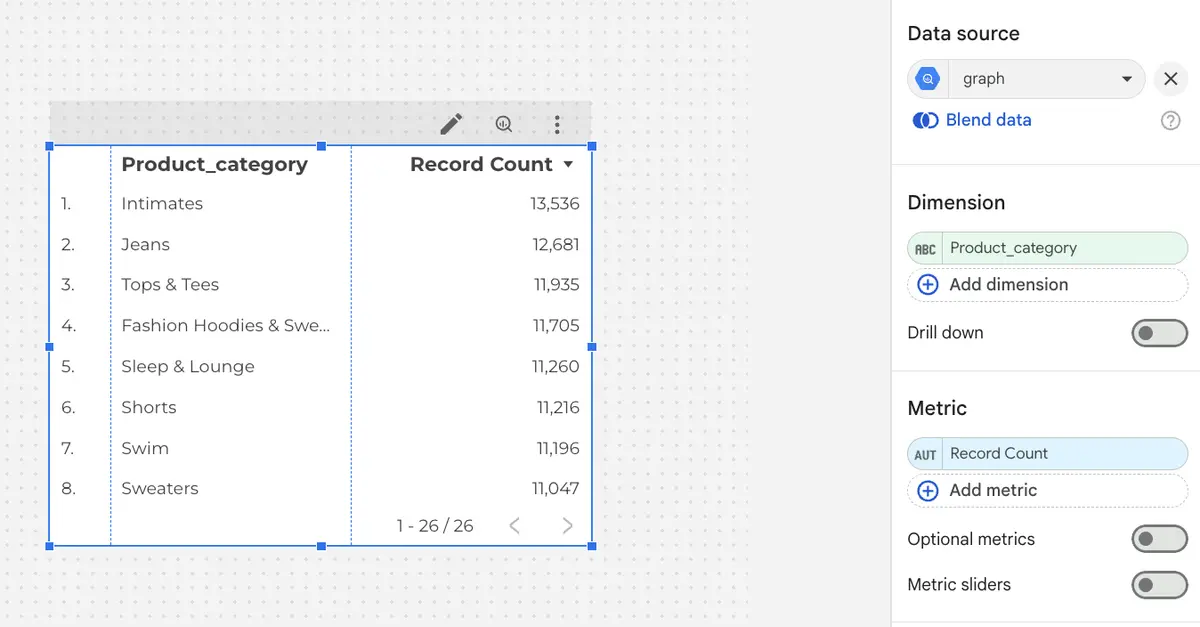
More information can be found here.
Google Analytics
User Groups Admin API
Google Analytics now offers a User Groups Admin API to manage user group access across properties and accounts programmatically. This API allows teams to automate access control and maintain permissions across large organizations.
The API introduces key administrative capabilities:
- Manage user groups: Create new groups, edit existing group metadata, and delete groups using their unique identifier (REST Resource v1alpha.organizations.userGroups).
- Manage group membership: Add users to specific groups, remove members, and assign roles as either Member or Owner (REST Resource v1alpha.organizations.userGroups.members).
To implement and use the User Groups Admin API, follow these steps:
- Confirm that you have Org Admin or User Admin permissions assigned at the organization level in GA.
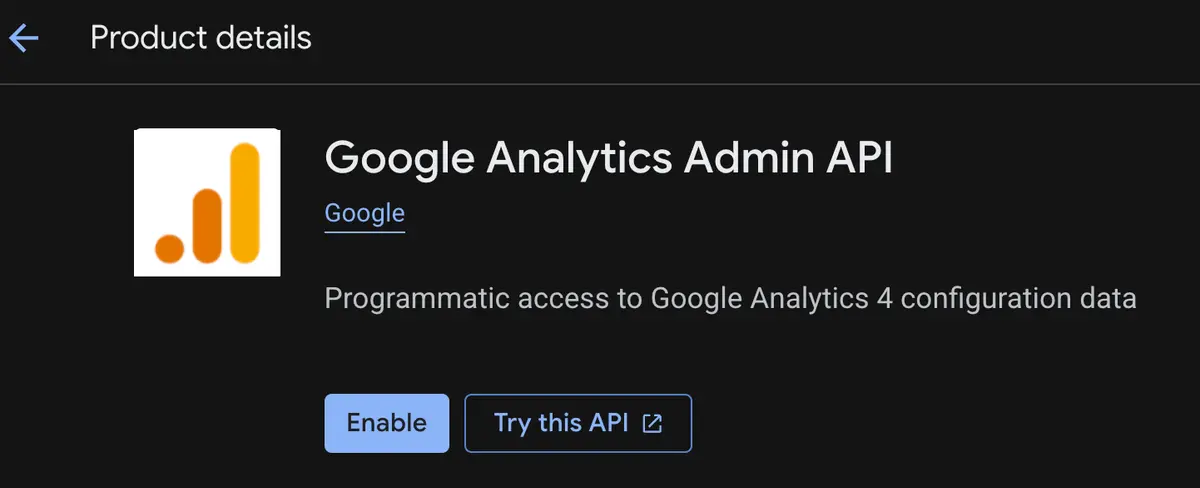
- Enable the Google Analytics Admin API within your Google Cloud project console.
- Configure authentication using OAuth 2.0 credentials or a service account with the necessary administrative scopes.
- Then you can send requests to the REST resources.
The REST resource documentation can be found here, and the technical changelog can be found here.
Google Tag Manager
Uniform GTM initialization
Google has standardized the behavior of tagging snippets to ensure consistency, reliability, and high performance across websites using the Google tag. With this update, all Google Tag Manager (gtm.js) container snippets initialize immediately upon container load, regardless of any gtag('config') commands present on the page.
This update introduces two important behavioral changes:
- Independent container initialization: Every gtm.js container snippet now initializes on load without waiting for gtag('config') commands.
- Visible gtag.config events in the dataLayer: Each gtag('config') command now surfaces in the dataLayer as a gtag.config event, which can cause tags using wildcard custom event triggers (such as .*) to fire unexpectedly.
Based on these changes, you need to check a few things in your setup:
- Open your Google Tag Manager container and navigate to Triggers to identify any Custom Event triggers using regular expression matching with broad wildcard patterns (such as .*) and restrict them to match only the specific event names required by your tags so they do not fire on gtag.config events.
- Review your website templates to ensure every page running gtag('config') code also includes the Google tag (gtag.js) code snippet, or migrate those configurations directly into GTM.
More information can be found here.
Improved destination and tag connection
Google Tag Manager containers can now send measurement data directly to supported Google measurement products without loading an additional gtag.js script.
Previously, loading gtag.js separately introduced potential latency and maintained isolated settings and permissions, which complicated troubleshooting and resulted in fragmented diagnostics.
This update establishes a direct relationship between tags and destinations, delivering several key improvements:
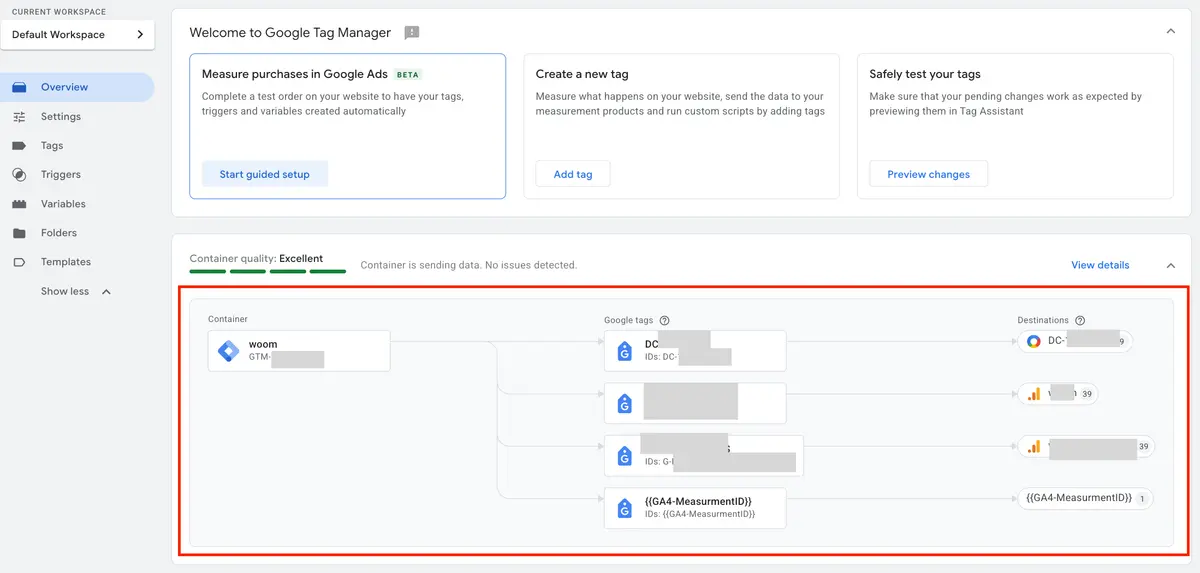
- Faster website performance: Eliminates the need to load extra gtag.js JavaScript files on the page.
- Improved data collection: Reduces latency during measurement transmission.
- Centralized administration: Consolidates configuration settings and user access permissions directly within the GTM container.
- Simplified troubleshooting: Creates a clear link between destinations and tags for consistent diagnostics.
More information can be found here.
Further Links
This post is part of the Google Data Analytics series from datadice and explains to you every month the newest features in BigQuery, Data Studio, Google Analytics, and Google Tag Manager.
Check out our LinkedIn account to get insights into our daily working life and get important updates about BigQuery, Data Studio, and marketing analytics.
We also started with our own YouTube channel. We talk about important DWH, BigQuery, Data Studio, and many more topics. Check out the channel here.
If you want to learn more about how to use Google Data Studio and take it to the next level in combination with BigQuery, check our Udemy course here.
If you are looking for help to set up a modern and cost-efficient data warehouse or analytical dashboards, send us an email to hello@datadice.io, and we will schedule a call.