In this blog post, I want to summarize the new releases from the Google tools that we use daily in datadice. Therefore, I want to give an overview of the new features of BigQuery, Dataform, Data Studio, Google Analytics, and Google Tag Manager. Furthermore, I will focus on the releases that I consider to be the most important ones, and I will also name some other changes that were made.
If you want to take a closer look, here you can find the Release Notes from BigQuery, Dataform, Data Studio, Google Analytics & Google Tag Manager.
BigQuery
Multi-level aggregation
Google BigQuery now supports multi-level aggregation in GoogleSQL, allowing an aggregate function to be passed directly as an argument into another aggregate function.
- Simplifies complex analytical queries by eliminating the need for intermediate Common Table Expressions (CTEs) or nested subqueries.
- Enables multi-tier metric calculations, such as computing the average of group maximums, directly within a single aggregation step.
- Improves SQL code readability and reduces overall statement length when performing hierarchical data rollups.
In the following example, you calculate the average daily revenue and identify the best single-day revenue for each product category.
Before the change, we would have done it like this:
WITH fake_sales_data AS (
  SELECT 'Electronics' AS category, TIMESTAMP('2026-08-19 10:00:00') AS order_timestamp, 150.50 AS revenue UNION ALL
  SELECT 'Electronics', TIMESTAMP('2026-08-19 14:30:00'), 200.00 UNION ALL
  SELECT 'Electronics', TIMESTAMP('2026-08-20 09:15:00'), 300.00 UNION ALL
  SELECT 'Clothing', TIMESTAMP('2026-08-19 11:00:00'), 50.00 UNION ALL
  SELECT 'Clothing', TIMESTAMP('2026-08-20 16:45:00'), 120.00 UNION ALL
  SELECT 'Clothing', TIMESTAMP('2026-08-20 18:20:00'), 80.00
),
daily_category_sales AS (
  SELECT
    category,
    DATE(order_timestamp) AS order_date,
    SUM(revenue) AS daily_revenue
  FROM fake_sales_data
  GROUP BY category, order_date
)
SELECT
  category,
  AVG(daily_revenue) AS avg_daily_revenue,
  MAX(daily_revenue) AS best_day_revenue
FROM daily_category_sales
GROUP BY category
Now we can do the following:
WITH
fake_sales_data AS (
  SELECT 'Electronics' AS category, TIMESTAMP('2026-08-19 10:00:00') AS order_timestamp, 150.50 AS revenue UNION ALL
  SELECT 'Electronics', TIMESTAMP('2026-08-19 14:30:00'), 200.00 UNION ALL
  SELECT 'Electronics', TIMESTAMP('2026-08-20 09:15:00'), 300.00 UNION ALL
  SELECT 'Clothing', TIMESTAMP('2026-08-19 11:00:00'), 50.00 UNION ALL
  SELECT 'Clothing', TIMESTAMP('2026-08-20 16:45:00'), 120.00 UNION ALL
  SELECT 'Clothing', TIMESTAMP('2026-08-20 18:20:00'), 80.00
)
SELECT
  category,
  AVG(SUM(revenue) GROUP BY DATE(order_timestamp)) AS avg_daily_revenue,
  MAX(SUM(revenue) GROUP BY DATE(order_timestamp)) AS best_day_revenue
FROM fake_sales_data
GROUP BY category
More information can be found here.
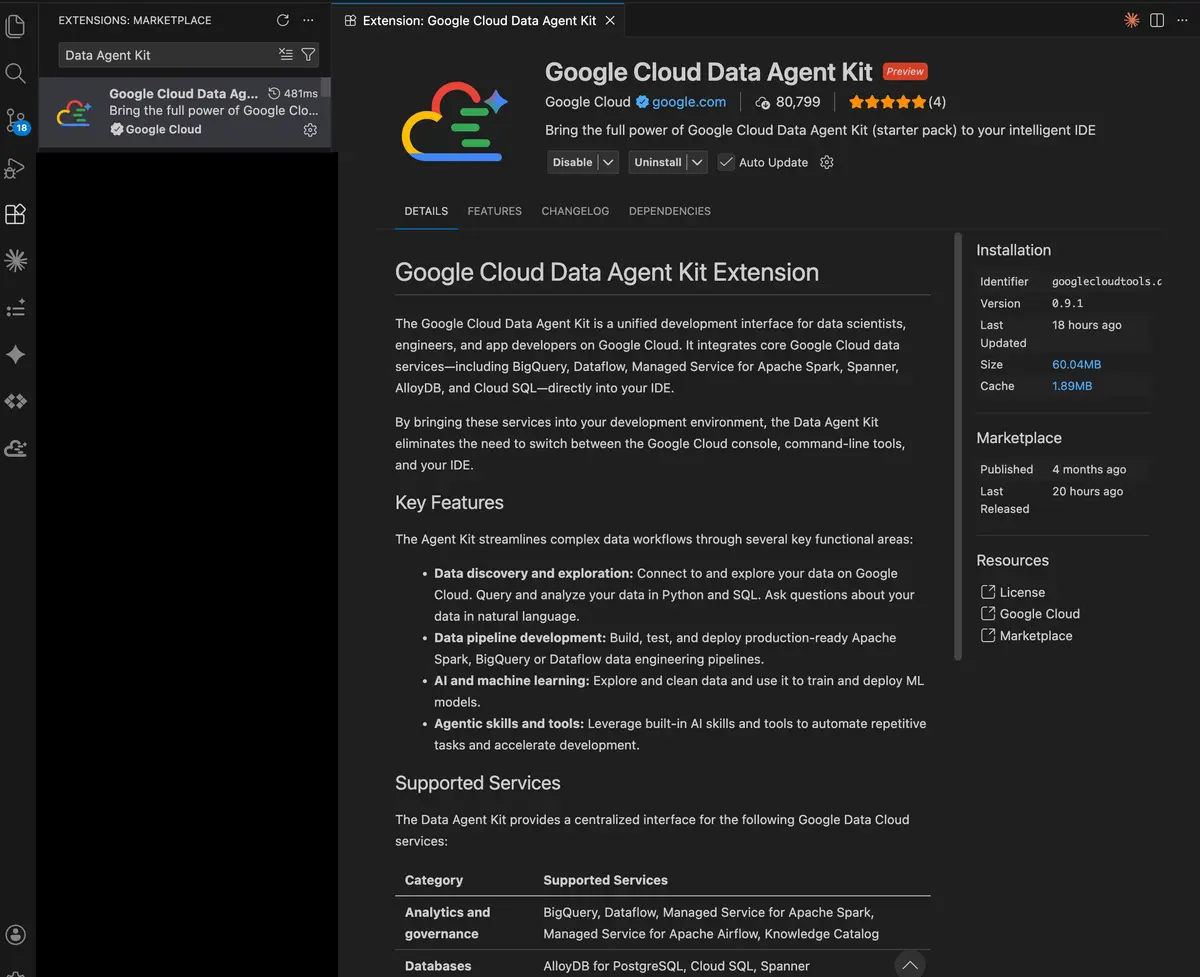
Data Agent Kit extension
Google introduced the Data Agent Kit extension, enabling direct interaction with BigQuery resources within agent coding tools.
- The extension integrates with popular agent development environments.
- Developers can browse datasets, manage data pipelines, and execute queries directly inside their preferred IDE.
- Users can prompt AI agents to perform administrative and operational BigQuery tasks natively within the workspace.
To set up and use the Data Agent Kit extension:
- Open your preferred agent coding tool
- Install the Data Agent Kit extension from your environment's extension marketplace.
- Authenticate and connect the extension to your Google Cloud project and BigQuery environment.
- Interact with your BigQuery resources or prompt your agent to run queries and manage pipelines.
More information can be found here.
New Data Transfer options
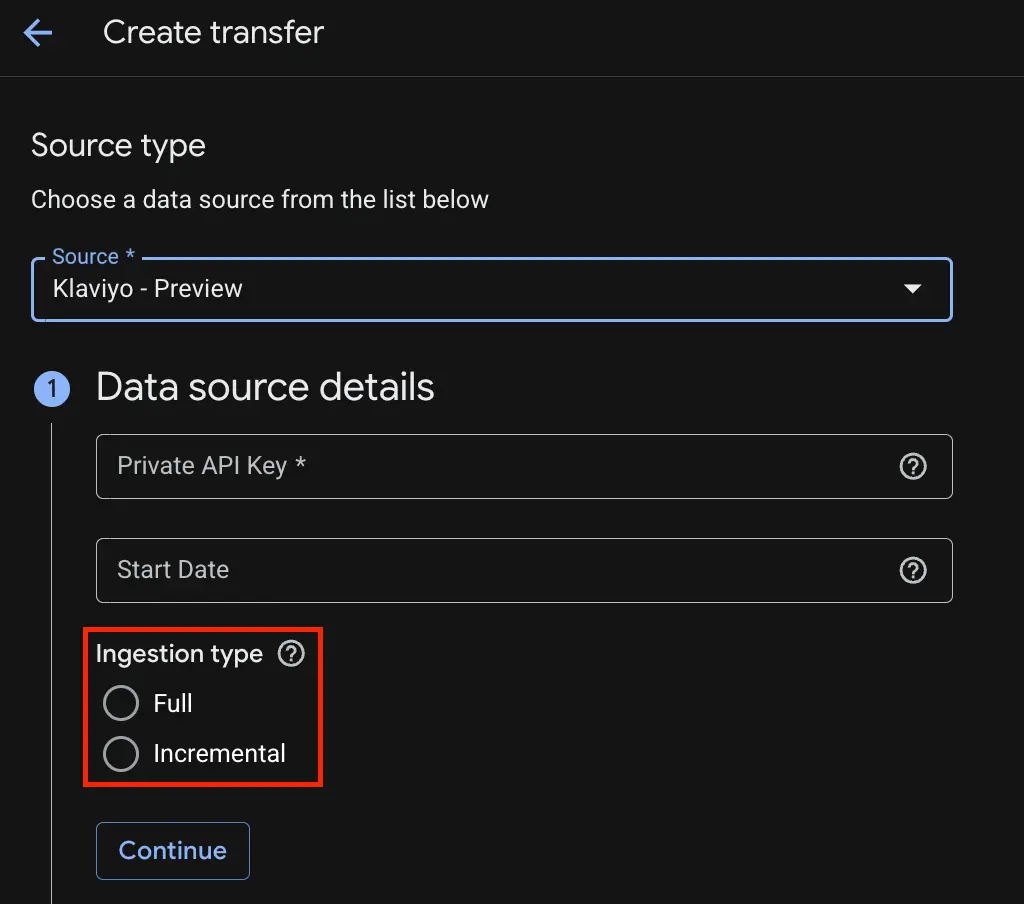
The BigQuery Data Transfer Service got a few new updates with new metadata ingestion capabilities and enhanced connector functionality.
- Metadata from PostgreSQL and Microsoft SQL Server data sources can now be transferred directly into Knowledge Catalog.
- The Klaviyo connector now supports incremental data transfers into BigQuery.
Dataform
Dataform deployments
Google introduced Dataform deployments, offering a centralized interface for creating and managing pipeline deployments connected to remote Git repositories. With the deployments, you can control which scripts are running at which interval to update the tables you have in BigQuery.
- Integrates directly with remote Git repositories to maintain automated compilation and code deployment workflows.
- Connections with Git can be established via Developer Connect, HTTPS or SSH
- Add the branch name and directory path
- Set up the Frequency (Daily, Hourly, Custom, …) or on-demand
Afterwards, you can select the created deployment, and in the deployment details you can create a Trigger / Workflow configuration to set up the automated script execution.
More information can be found here.
Data Studio
No further release for Data Studio.
Google Analytics
AdMob Link
There is a new product linking flow for AdMob directly within the GA Admin interface.
- Users can create or remove connections between App Data Streams and AdMob apps directly in GA4.
- Link management requires Admin or Editor access to the Google Analytics property and Administrator rights in AdMob.
- The integration provides complete user metrics, enhances data flow transparency, and allows ad impressions to serve as conversions for Google Ads tROAS campaigns when linked to Google Ads.
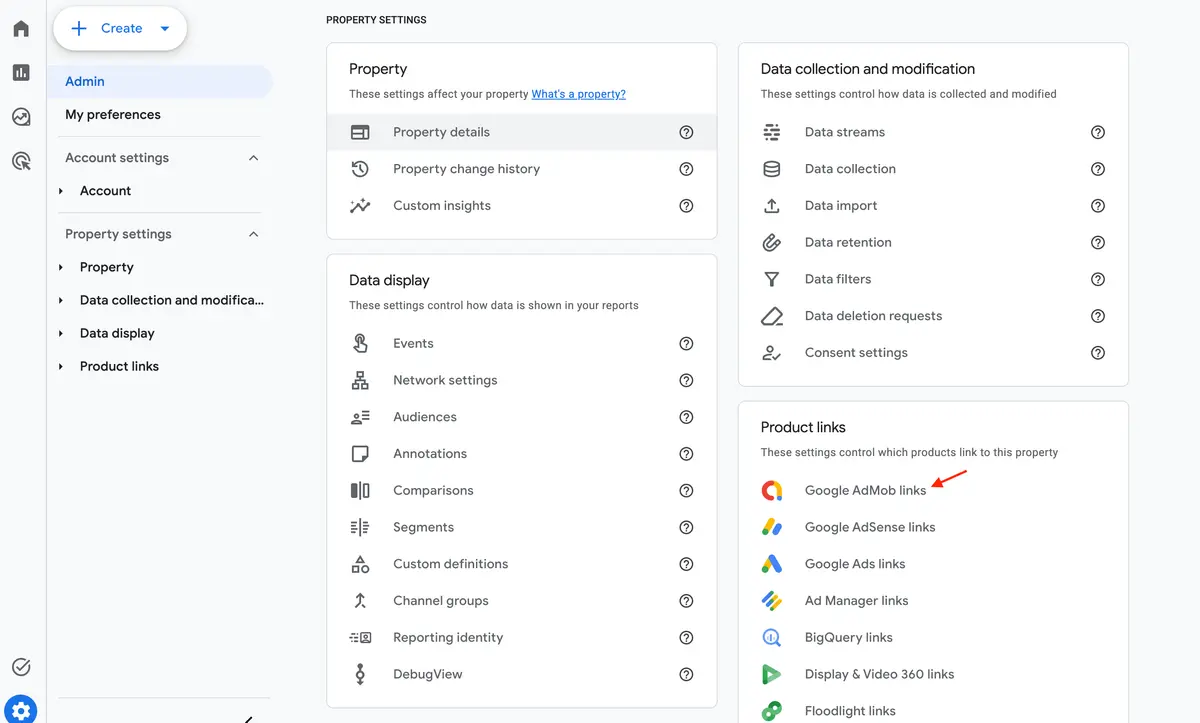
To set up AdMob links:
- Open the Admin console in your Google Analytics property.
- Navigate down to the Product Links section.
- Click AdMob Links to create, review, or delete app connections.
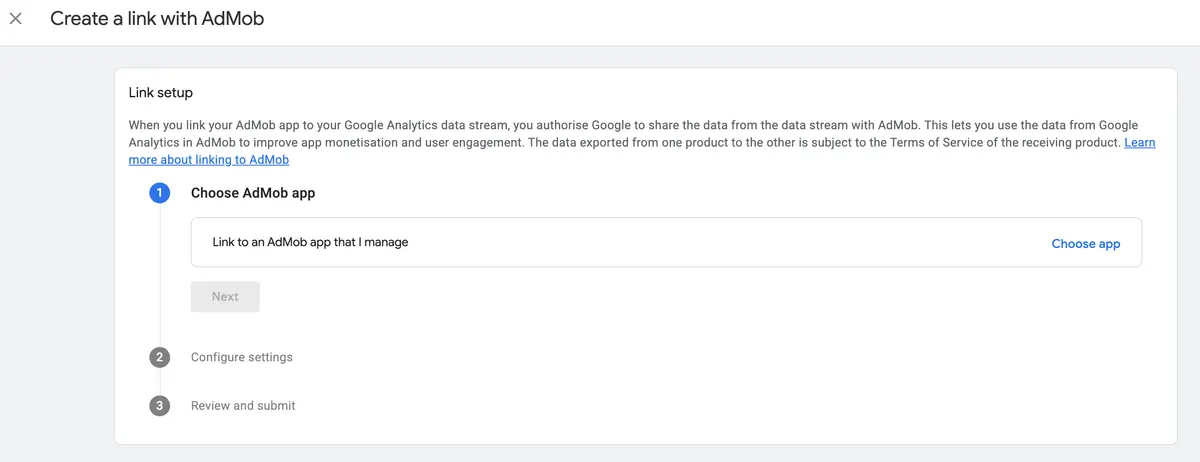
Cost import for campaign data
Google Analytics updated campaign data imports to require a currency field whenever cost data is uploaded.
- Google Analytics needs the currency specification to preserve reporting accuracy if property currency settings change.
- Users can map currency dynamically from a column in the data source or apply a single, fixed currency to the entire dataset.
- Existing campaign data imports remain unaffected and will continue to report with the property's current currency.
To configure the currency field during campaign data import:
- Open Admin in your Google Analytics property and navigate to Data import.
- Create a new campaign data import or select an existing configuration.
- Under field mapping, assign the Currency field to a specific data source column or choose a fixed currency.
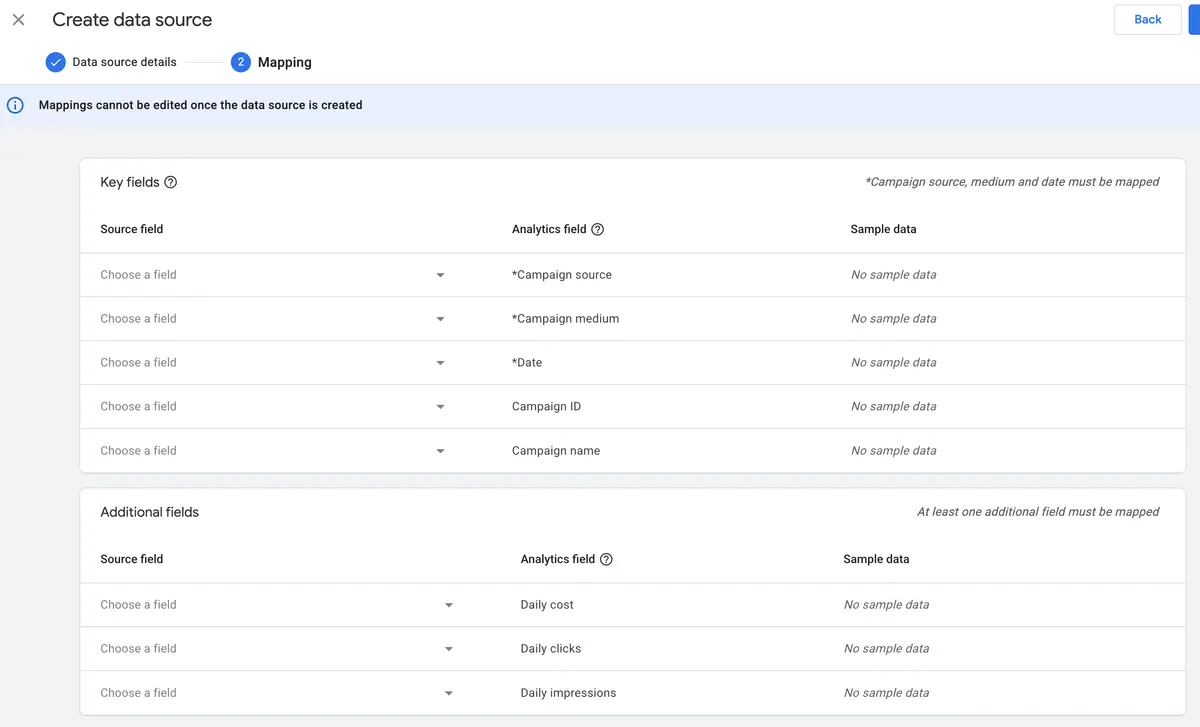
More information can be found here.
Note: In the repositories I have access to, the currency field is not yet available in the mapping.
New diagnostics
Google Analytics introduced a new diagnostic tool to alert users about potential campaign data accuracy issues caused by missing URL parameters.
- Properties missing aggregate identifiers, such as GBRAID and gad_, from destination URLs will trigger a diagnostic alert.
- The diagnostic report lists the specific problematic URLs affected by the missing URL parameters.
- Actionable guidance and steps to resolve the tracking issue are provided directly within the diagnostic interface.
Google Tag Manager
New Overview page
The Google Tag Manager Overview page got a new update with a lot of changes. Client and Server Containers got these updates.
- Connected Product Destinations: Active Google tags and destination IDs are now surfaced directly on the Overview dashboard to provide a consolidated view of your tracking setup.
- Visual Event Builder (Beta): A new tool allows users to automatically construct tag configurations by interacting directly with test elements on their website. This would be worth an own blog post on how it works in detail. One important point, so far, it is just available for Google Ads conversions.
- Simplified Workspace View: The workspace drop-down menu in the top-left navigation is hidden by default for containers with only one active workspace to reduce clutter. This can be changed in the User Settings as shown below. Furthermore, the whole workspace handling has changed with the new 3-dot menu in the overview page.
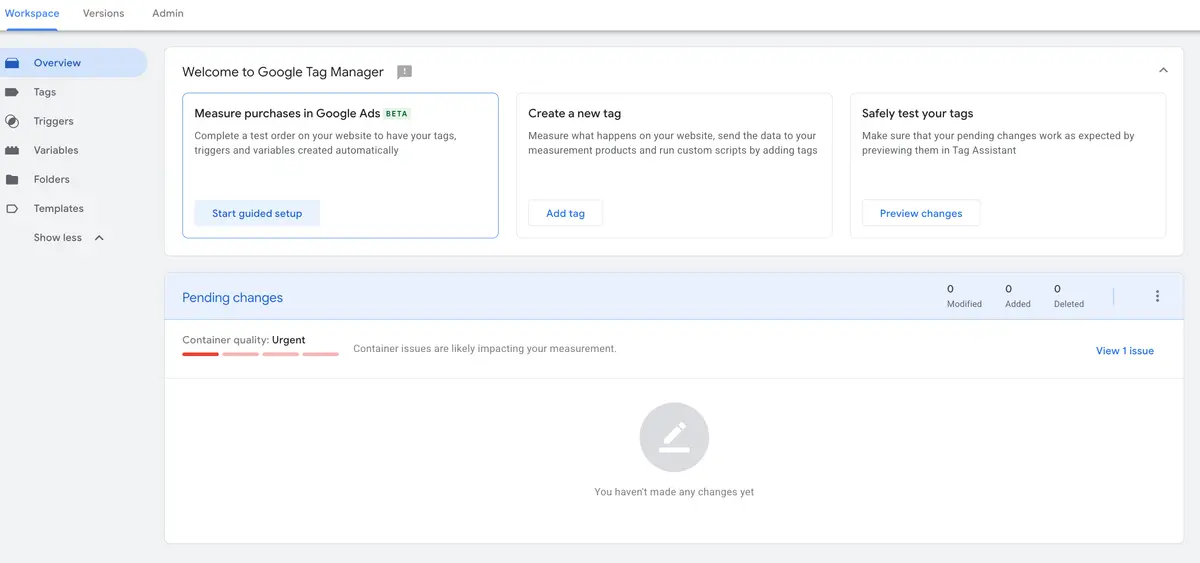
To permanently restore the top-left Workspace Switcher across single-workspace containers:
- Click the three vertical dots in the top-right corner of the GTM interface.
- Select “User Settings” from the menu.
- Under “Application Preferences”, check the box for “Always show Current Workspace”.
In general, the changes are aimed at new users working with GTM. If they really help, time will tell.
Handling of unsupported installation paths
Google updated how GTM handles containers loaded via unsupported URL paths, such as /gtag/js or /gtag/destination. Previously, loading a container through an unsupported path automatically triggered a restricted mode where only Google-provided tags and variables were allowed to execute.
- Container execution restrictions are now determined directly by the loading ID type rather than the URL path.
- Containers loaded using a standard GTM-XXXX ID operate without restrictions, regardless of the path used.
- Containers loaded using product-specific IDs (such as G-XXXX or AW-XXXX) are restricted exclusively to Google-provided tags and variables.
- Standard container implementations using official Google-provided snippets remain completely unaffected.
Further Links
This post is part of the Google Data Analytics series from datadice and explains to you every month the newest features in BigQuery, Data Studio, Google Analytics, and Google Tag Manager.
Check out our LinkedIn account to get insights into our daily working life and get important updates about BigQuery, Data Studio, and marketing analytics.
We also started with our own YouTube channel. We talk about important DWH, BigQuery, Data Studio, and many more topics. Check out the channel here.
If you want to learn more about how to use Google Data Studio and take it to the next level in combination with BigQuery, check our Udemy course here.
If you are looking for help to set up a modern and cost-efficient data warehouse or analytical dashboards, send us an email to hello@datadice.io, and we will schedule a call.