In this blog post, I want to summarize the new releases from the Google tools, that we use daily in datadice. Therefore I want to give an overview of the new features of BigQuery, Dataform, Looker Studio, Google Analytics and Google Tag Manager. Furthermore, I will focus on the releases that I consider to be the most important ones and I will also name some other changes that were made.
If you want to take a closer look, here you can find the Release Notes from BigQuery, Dataform, Looker Studio, Google Analytics & Google Tag Manager.
BigQuery
Dark Theme in BigQuery
Finally! There is a native dark mode available for (some) Google Cloud Services like BigQuery.
You can enable this mode under Settings and Utilities > Preferences> Appearance, then select the desired color theme.
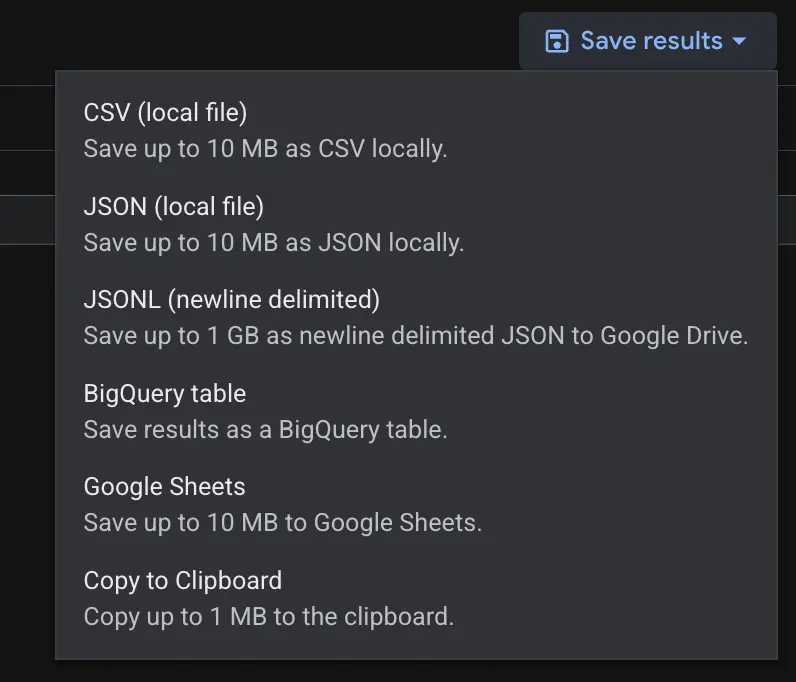
 Export data settings
You can change the settings on the project or organization level (when you have access to the organization). In the settings configured on the screenshot, I can not see the option of exporting data to Google Drive, but all other settings are still available.
 Restricted export settings
These settings can be used to restrict some settings for the users of the Google Cloud. You can not just restrict the export options. Override the settings of some explore functionalities, like “Explore with Sheets” is possible too.
Dataform
Dark Mode
Just to mention it again. Dark Mode is available for Dataform. When you change the same setting as described in the BigQuery “Dark Mode” section, it changes the style for Dataform, too.
Looker Studio
Group Others bug
There is a bug mentioned in the Release Notes, where Google implemented a Hotfix. When you use the Group Others function in combination with a comparison metric, the chart could show the wrong data.
The Hotfix leads to the comparison metric field showing “no data” when the Group others option is enabled on a chart.
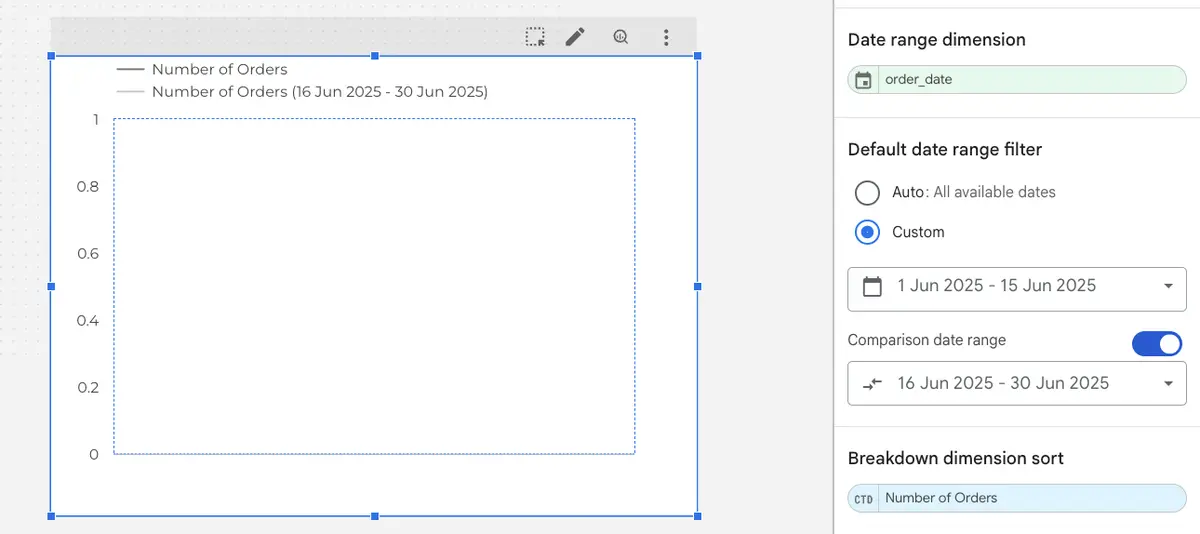 Chart with a comparison date range and “Group other” option
Google Analytics
Cost data import
You were already able to import cost data from different sources. Now, even more sources are supported:
- Google Sheets
- Amazon Redshift
- Amazon S3
- BigQuery
- Google Cloud Storage
- HTTPS
- MySQL
- PostgreSQL
- Snowflake
Due to the support of all these Data Warehouses and Databases, you now have a high flexibility of how you want to build up the cost data and import the data.
Consent Settings Hub with Tag Diagnostics
In GA4, you get more detailed information about your Consent Tracking.
In the Consent settings, you can find the information from the Google Tag Diagnostics now. If there is a problem with your Consent tracking, more details are shown here.
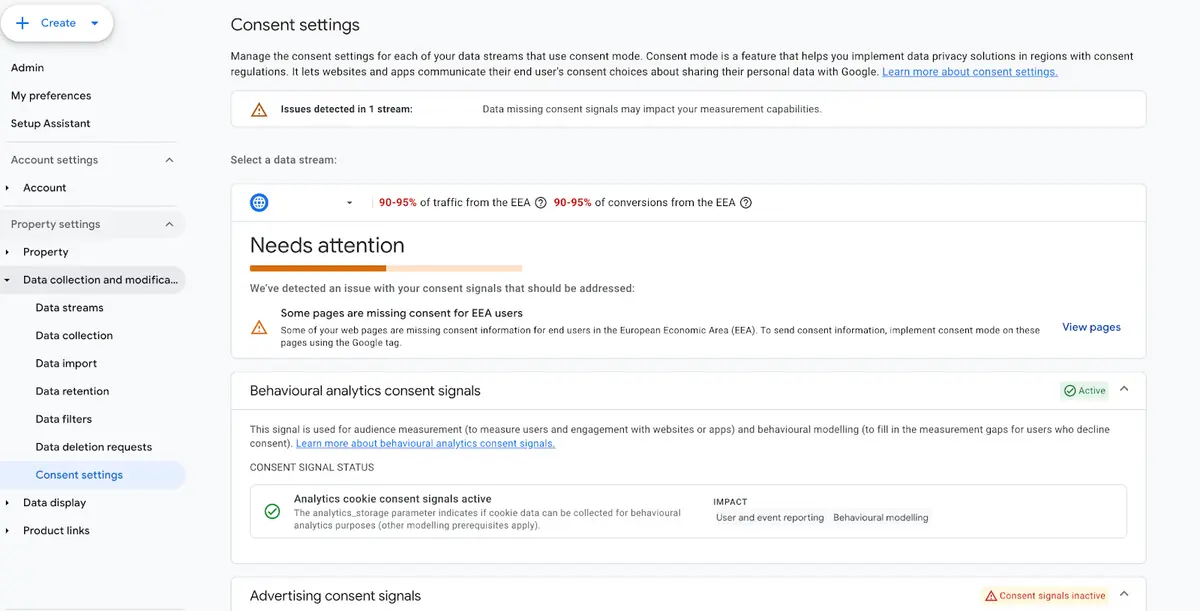 Consent Settings in GA4
In the section “Needs attention” you see which problems occur, and you can click on “View pages” to get more information.
 Tag Diagnostics
Syncing custom dimensions and metrics
This feature is just for Google Analytics 360 users.
When you have a source property and one or multiple subproperties, you can transfer the custom dimensions and metrics from the source property to the subproperties. Additionally, changes made to the custom dimensions and metrics in the source property will be automatically reflected in the subproperty.
If you already have a subproperty with at least one custom dimension or metric, this new syncing feature will not work.
Google Tag Manager
Scripts in the web container
Google made a significant change to how server-side containers handle Google scripts ( gtag.js, gtm.js,...). The scripts need to be served by using the web container client now.
This change is especially important for the GA4 Client. This Client no longer supports dependency serving for Google scripts. The Web Container Client needs to be used instead now.
If you are not using the setup yet, you need to make the following two changes:
- Changing the GTM Snippet Code on the Website
(function(w,d,s,l,i){w[l]=w[l]||[];w[l].push({'gtm.start':new Date().getTime(),event:'gtm.js'});var f=d.getElementsByTagName(s)[0],j=d.createElement(s),dl=l!='dataLayer'?'&l='+l:'';j.async=true;j.src='https://subdomain.domain.com/gtm.js?id='+i+dl;f.parentNode.insertBefore(j,f);})(window,document,'script','dataLayer','GTM-XXXXXXX');
-
You need to replace the following two parts of the snippet:
-
subdomain.domain.com: Adding the domain of your server
-
GTM-XXXXXXX: Adding the GTM Web Container ID (Not the Server Container ID)
-
Adding the Web Container Client to your GTM Server and adding the Web Container ID
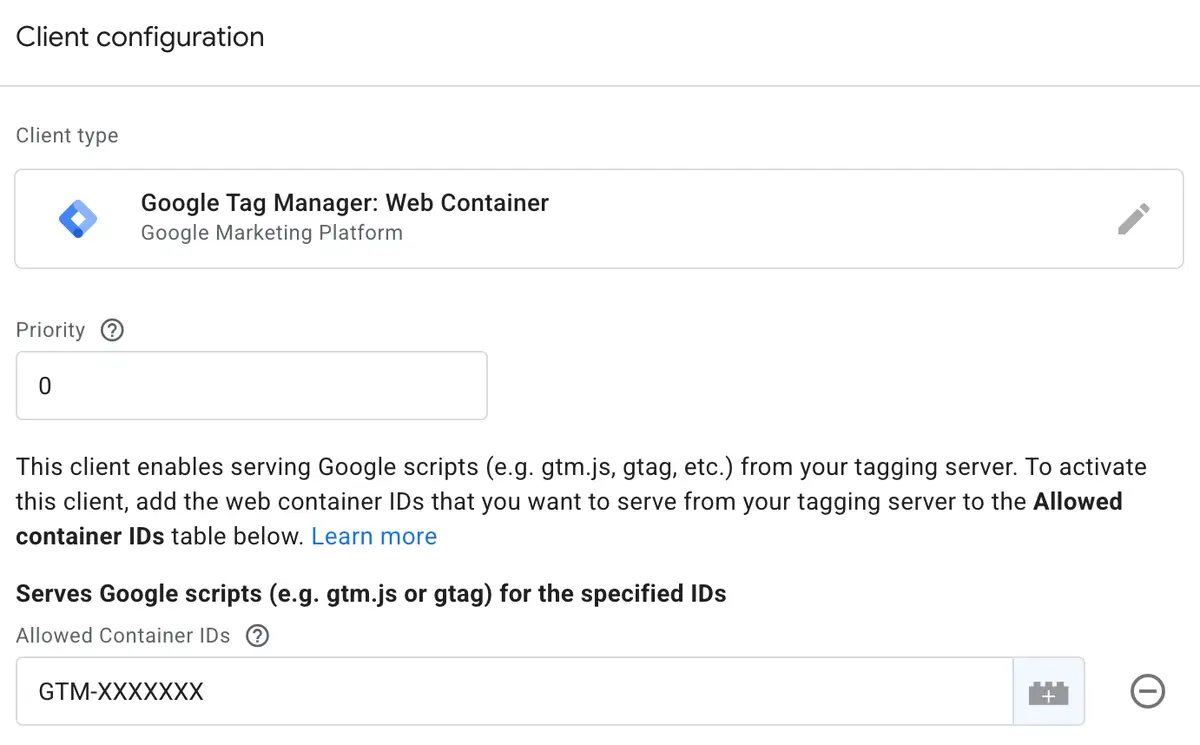 Web Container Client
Important: In the Release Notes, it is mentioned that existing clients are not affected by this change, so you do not need to change immediately.
Further Links
This post is part of the Google Data Analytics series from datadice and explains to you every month the newest features in BigQuery, Data Studio, Google Analytics and Google Tag Manager.
Check out our LinkedIn account, to get insights into our daily working life and get important updates about BigQuery, Data Studio and marketing analytics.
We also started with our own YouTube channel. We talk about important DWH, BigQuery, Data Studio and many more topics. Check out the channel here.
If you want to learn more about how to use Google Data Studio and take it to the next level in combination with BigQuery, check our Udemy course here.
If you are looking for help to set up a modern and cost-efficient data warehouse or analytical dashboards, send us an email to hello@datadice.io and we will schedule a call.